
Manual / Finance & invoicing / Correcting the address on an invoice
Part 8 of 9, Finance and invoicing
Correcting the address on an invoice
Is there a typo in the address of an invoice you just created? Then the solution depends on the status of that invoice. The address on an invoice is a snapshot of the contact's address at the moment you created the invoice. So you don't change the address separately on the invoice, but on the contact, after which the invoice takes over the corrected details.
Invoice not yet sent or passed on
Has the invoice not yet been sent to the customer and not yet passed on to the accounting? Then you correct it in two steps.
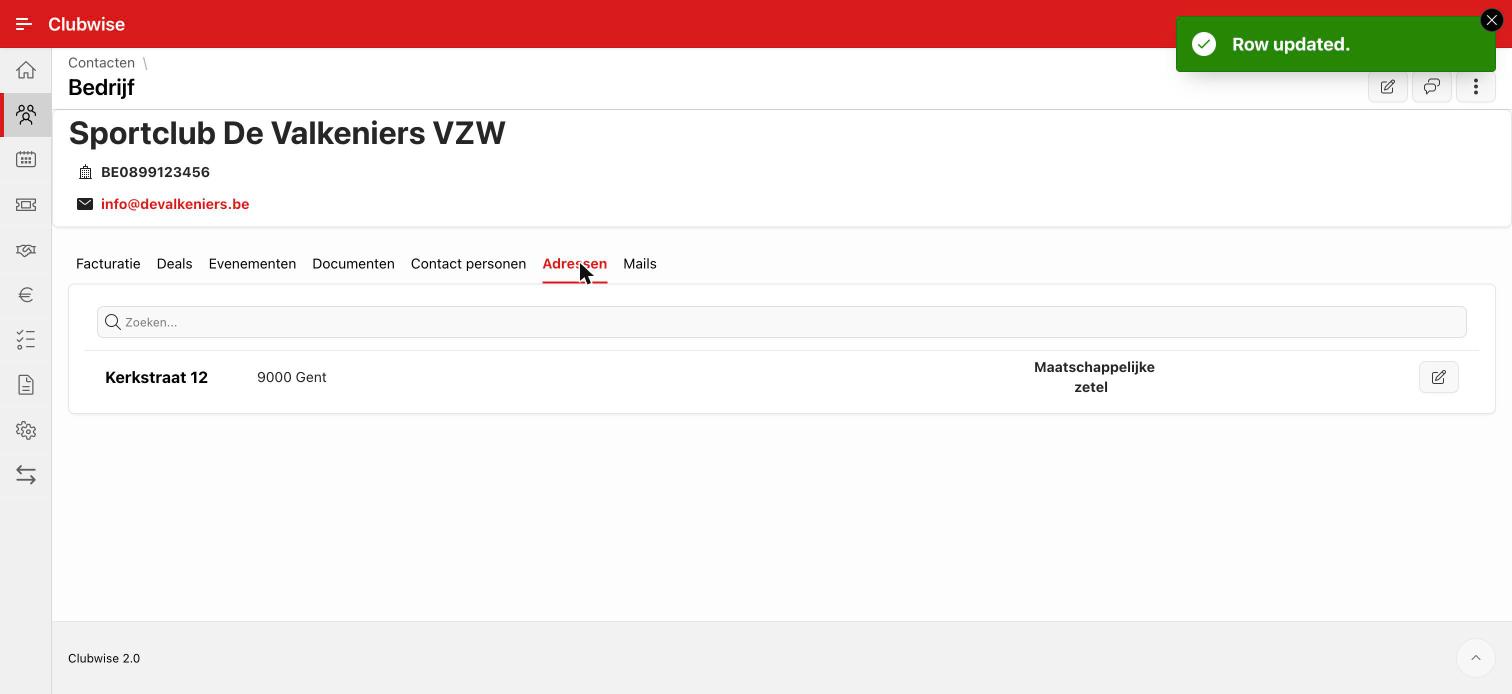
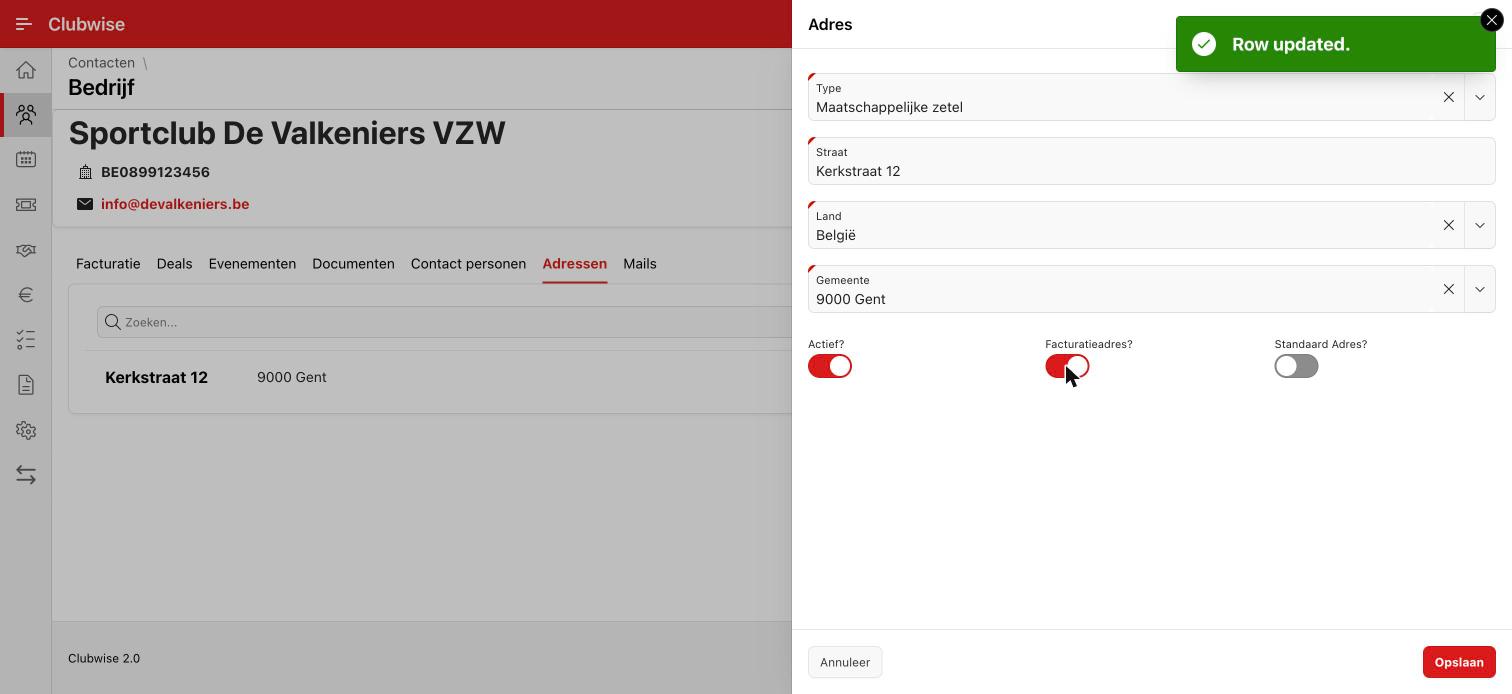
- Correct the address on the contact. Open the company or the person, go to the tab Addresses and correct the wrong address with the pencil icon. That way it is also right for all following invoices.
- Refresh the invoice. Open the invoice concerned and choose Refresh in the ⋮ menu at the top. The invoice then fetches the corrected address from the contact again.
Tip: Want to avoid the credit note? Always correct a wrong address on the contact before you send the invoice or pass it on to the accounting. As long as the invoice is still at that stage, you can easily have it refreshed.
Invoice already sent or passed on
Has the invoice already been sent to the customer or passed on to the accounting (e.g. to PEPPOL)? Then you can no longer change it. A sent or booked invoice is final. Then proceed as follows.
- Credit the wrong invoice. Choose Credit in the ⋮ menu of the invoice. That creates a credit note that cancels out the wrong invoice.
- Correct the address on the contact via the Addresses tab, so the new invoice immediately gets the right address.
- Create a new, correct invoice for the customer.
Note: You recognise a credit note in the invoice list by the prefix “CN_” and a negative amount. If you work with PEPPOL, both the credit note and the new invoice go to the accounting.
Did this answer your question?
Thanks for your feedback!