
Working with reports
Many lists in Clubwise are reports: the deals, Finance → Income and Expenses, and the reporting of an event. They all work the same way. At the top is the toolbar with a search field, the choice of report and the menu Actions.

Search
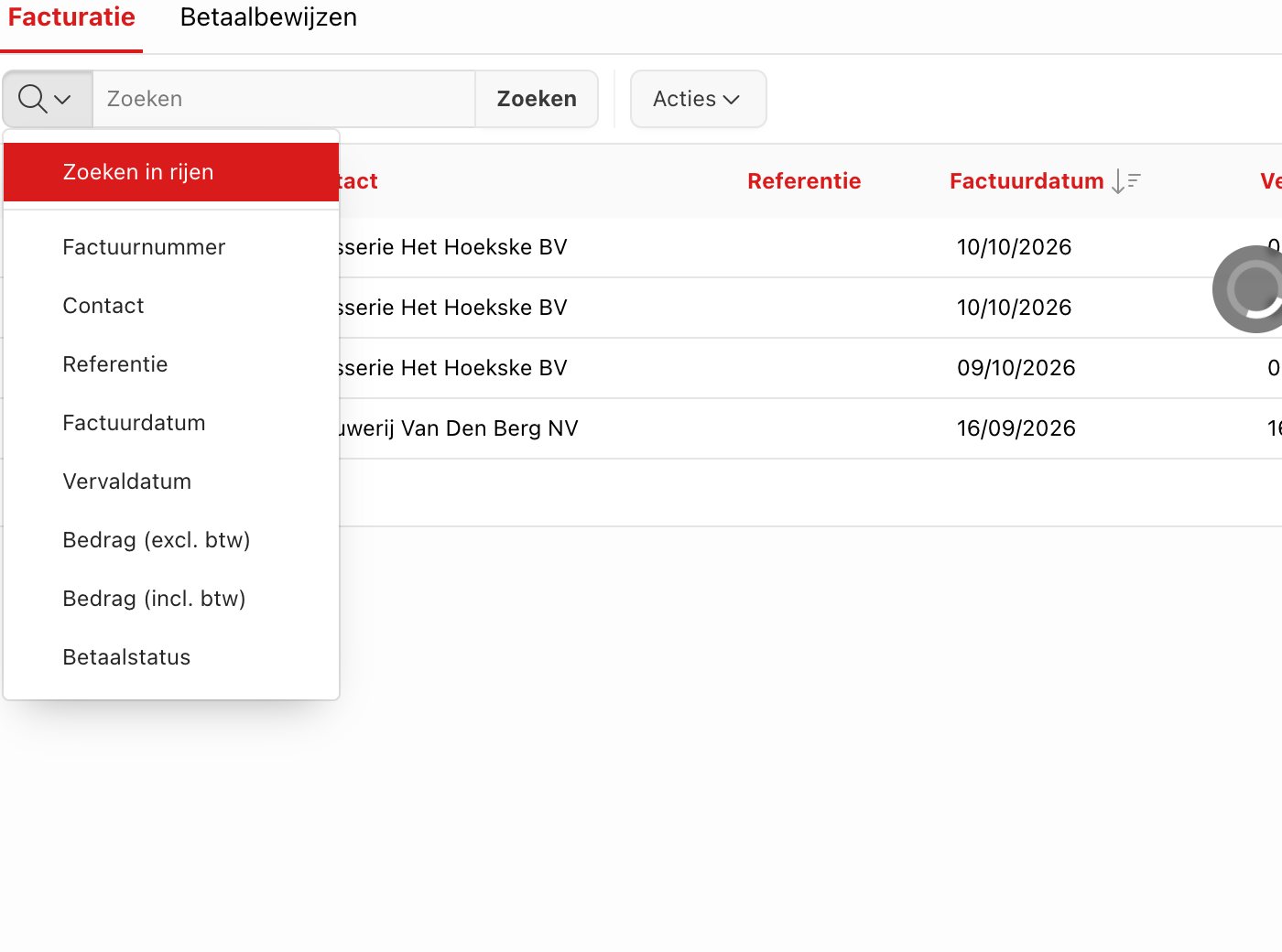
Type a word in the search field and click Search. Clubwise searches all columns. If you want to search one column, first click the magnifying glass and choose the column.
Sorting and quick filtering via the column title
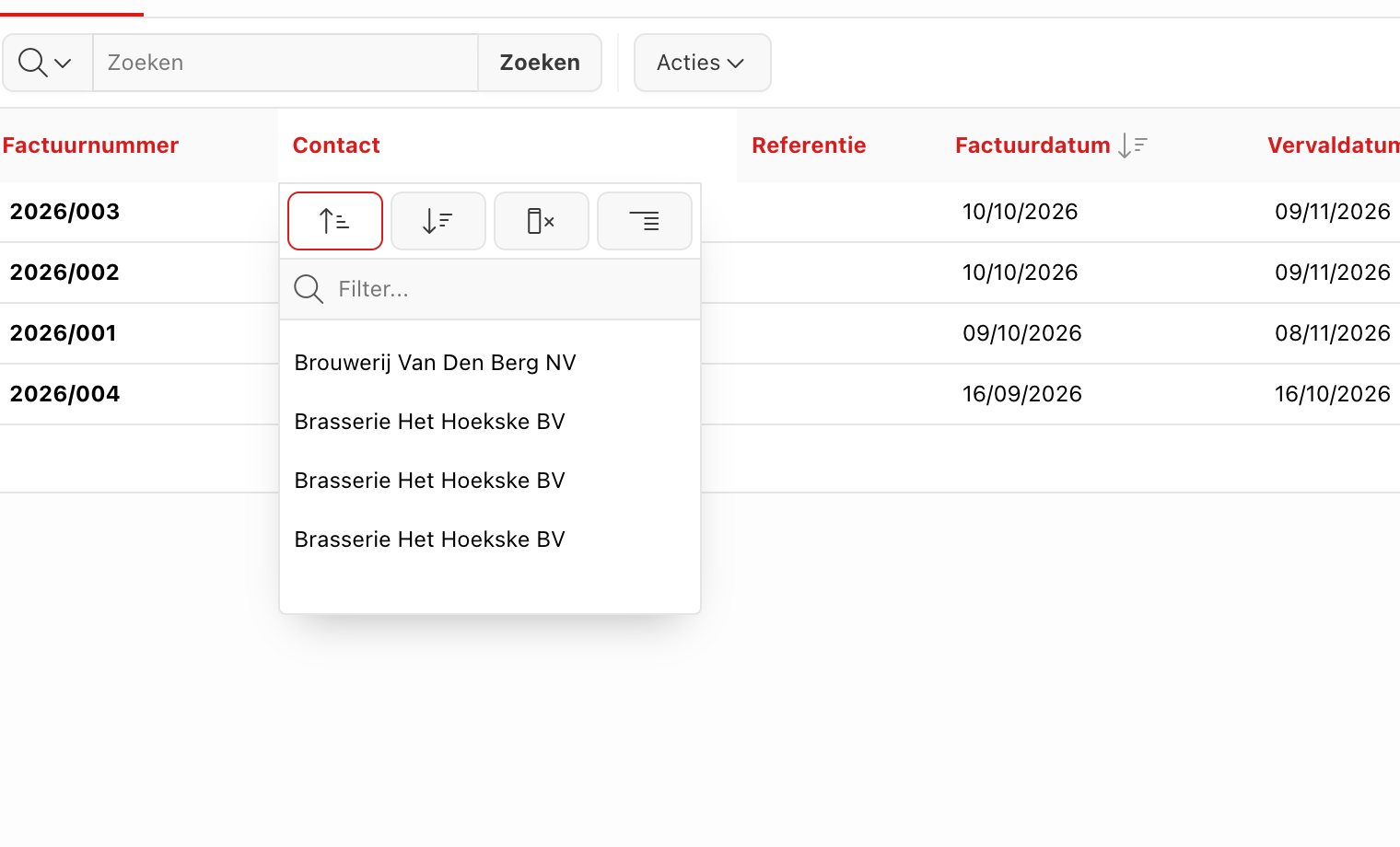
Click the title of a column. You can then sort ascending or descending, hide the column, group, or filter right away on a value from the list.
The Actions menu
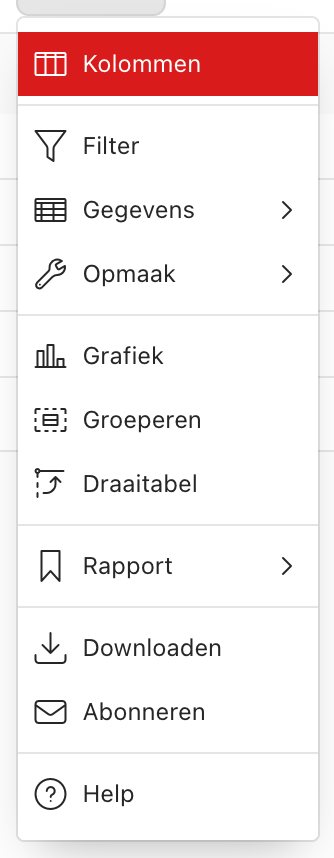
- Columns: choose which columns you see and in which order.
- Filter: only show the rows that meet a condition. See Applying a filter.
- Data: sorting on several columns, totals (sum, average, count) and your own calculations.
- Format: grouping in blocks, highlighting rows with a colour and the number of rows per page.
- Chart, Group by and Pivot: the same data as a chart or summary.
- Report: saving your settings as your own report, or resetting everything with Reset.
- Download: the list as you see it as CSV, Excel, HTML or PDF.
Choosing columns
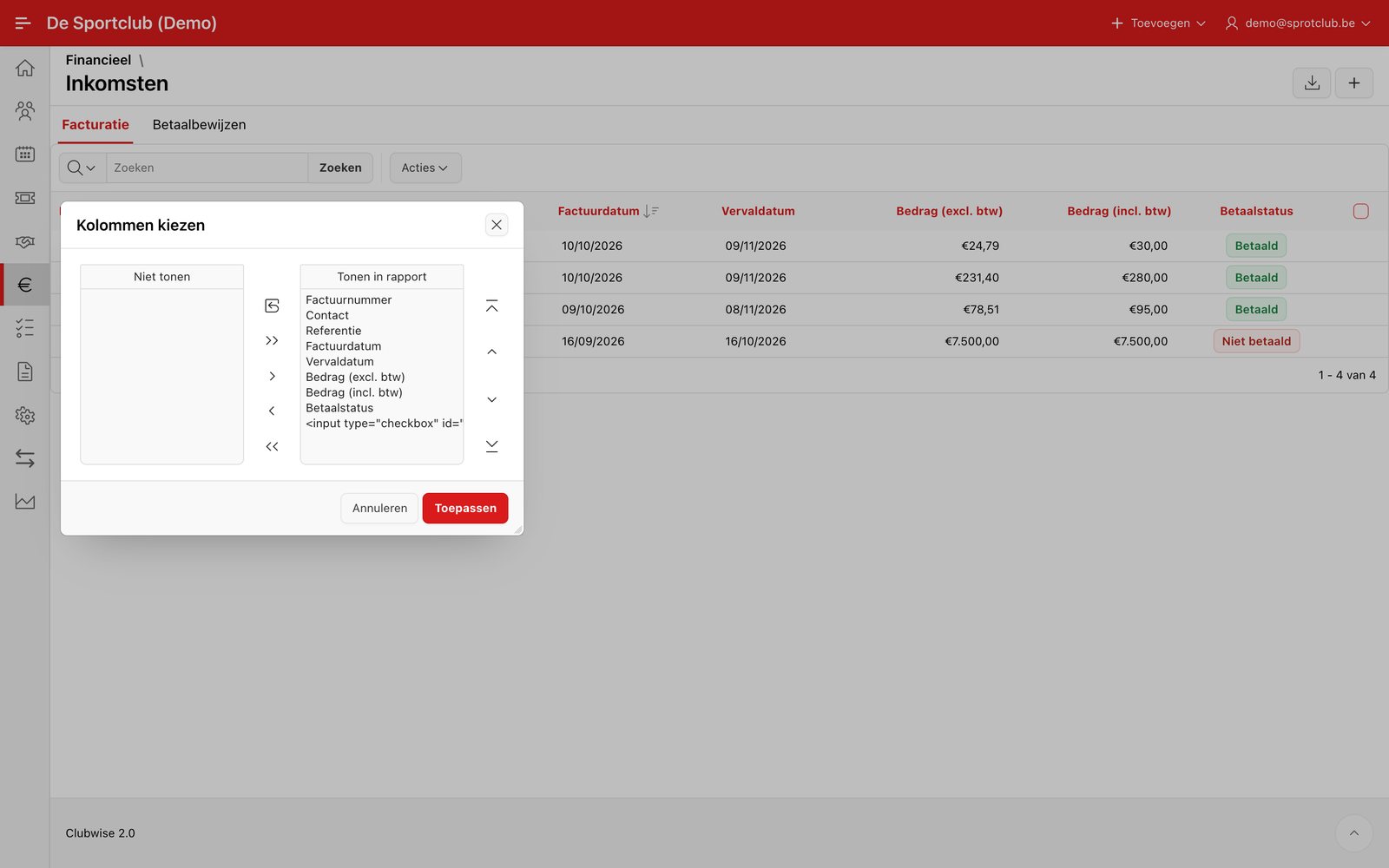
Move columns between Do not display and Display in report and put them in the order you want with the arrows. Click Apply.
Saving your own report
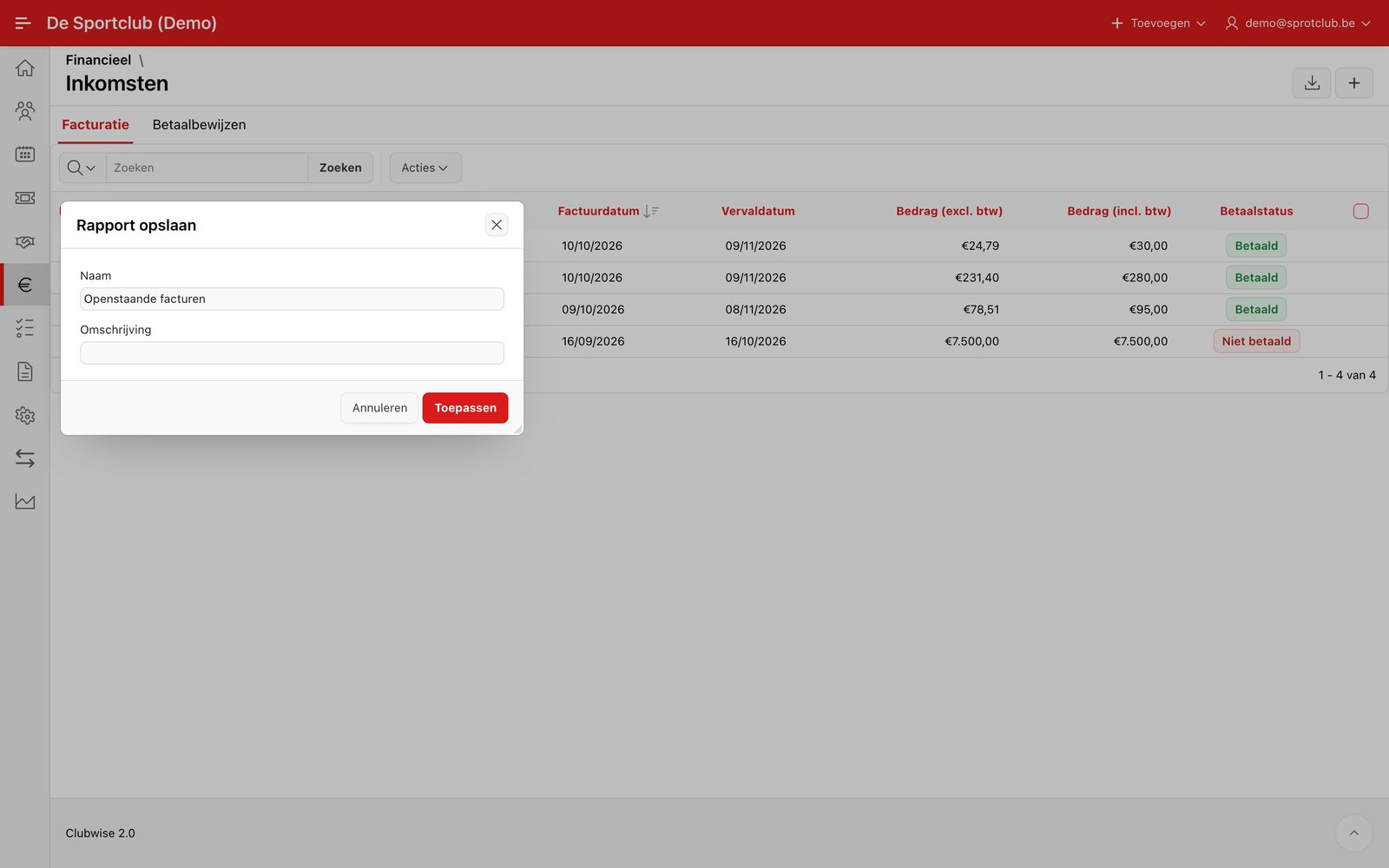
Have you set up columns, filters and sorting you need more often? Choose Actions → Report → Save report and give it a name, e.g. Open invoices. You then find it again in the list next to the search field. The Primary report always remains available.
Download
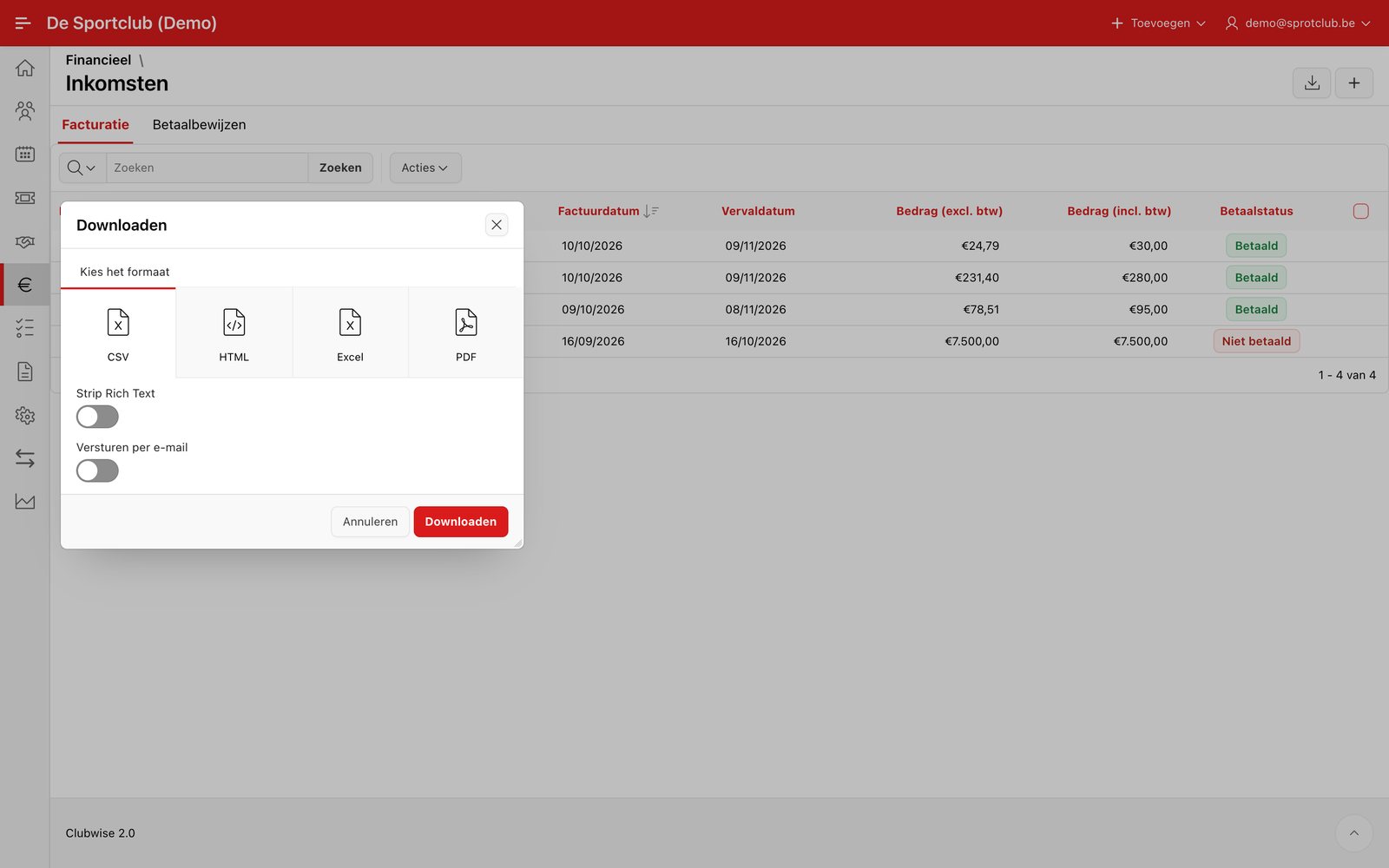
Choose Actions → Download and the format. Excel is handy for further calculations, CSV for reading into another program. The download contains the rows and columns as you see them at that moment, including your filters.
Did this answer your question?