
Manual / Getting started / Using filters
Part 4 of 8, Getting started
Using filters
You make long lists in Clubwise shorter in two ways, depending on the list:
- Reports such as the deals and Finance → Income have a search bar at the top, a button Search and a menu Actions. Via Actions → Filter you choose a column, a condition and a value.
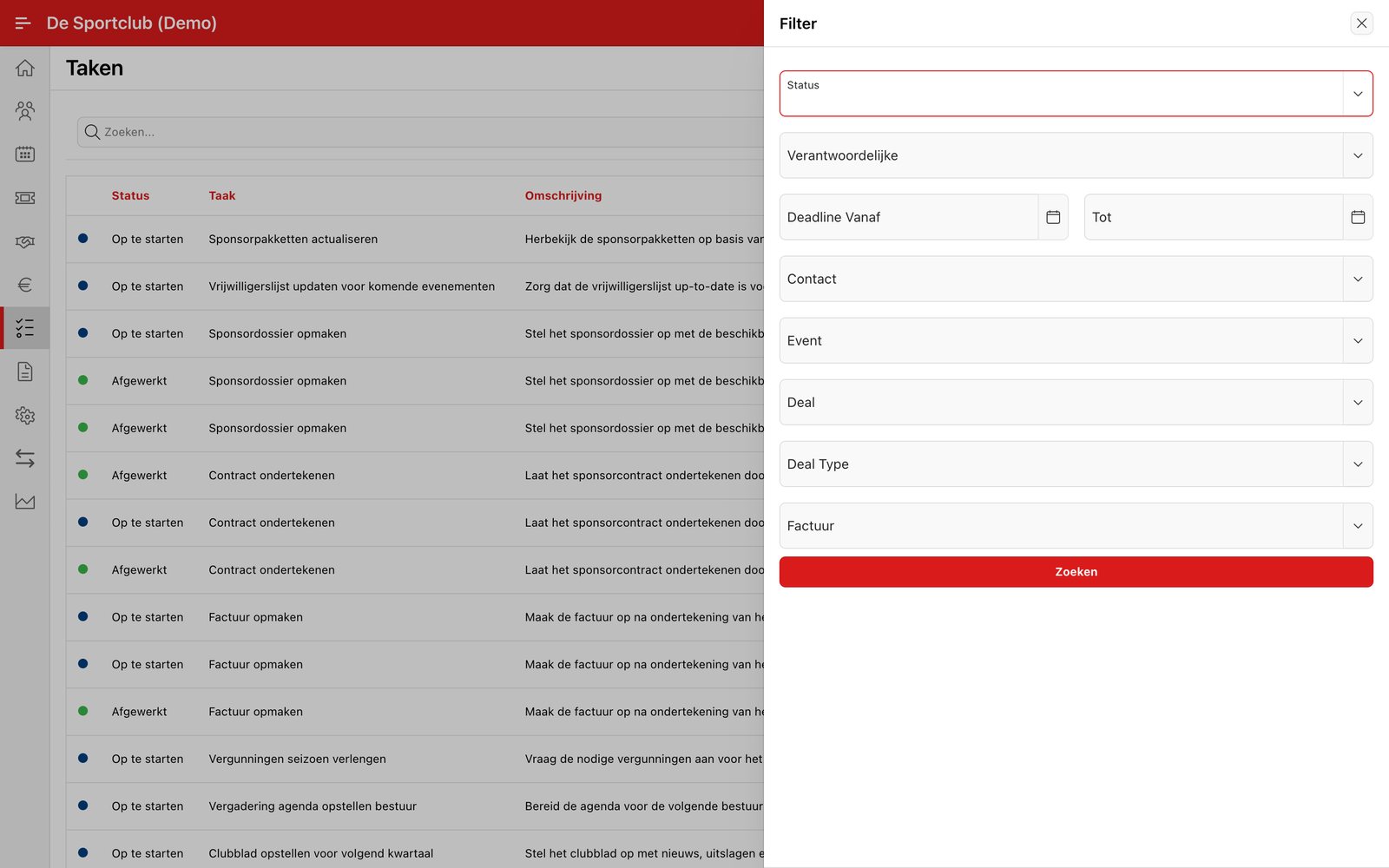
- Tasks has at the top right a filter icon (funnel). That opens a panel with fixed fields such as status, owner, deadline, contact and deal.
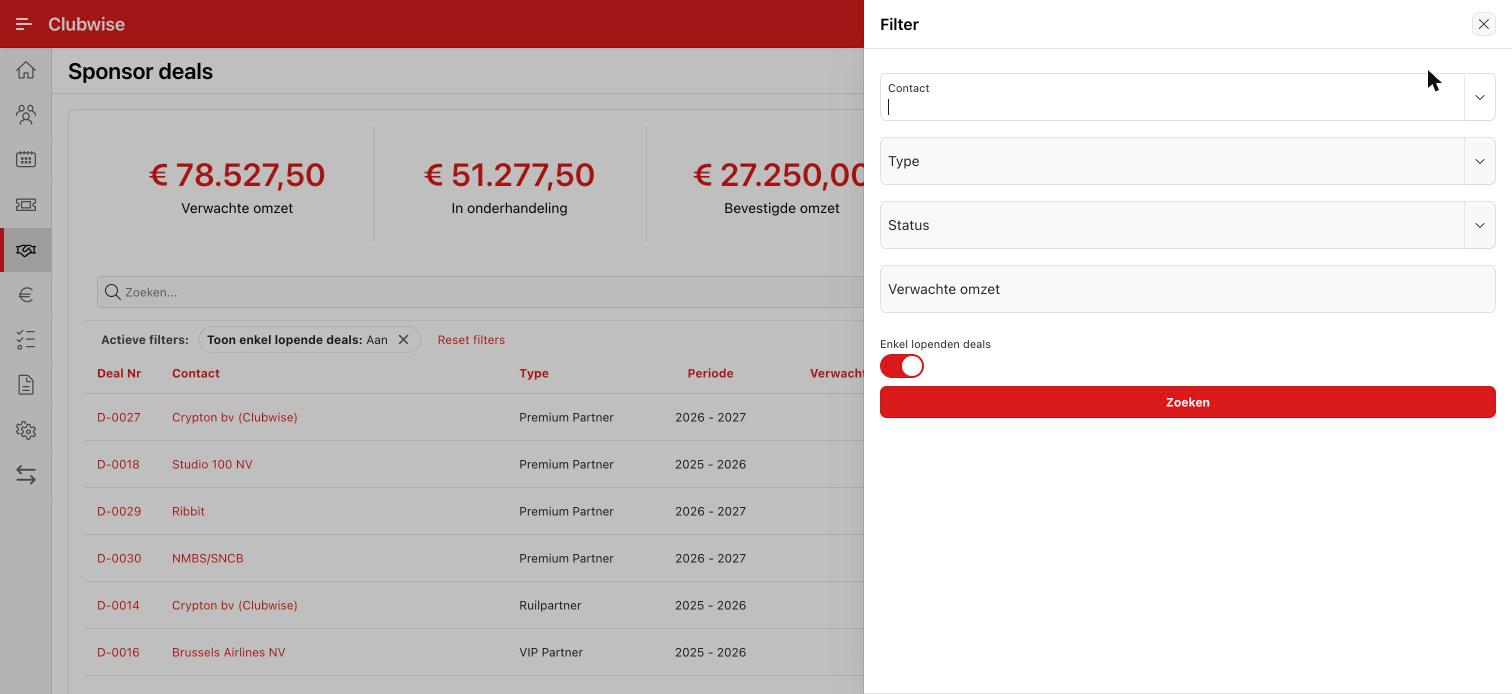
On the deals you also choose with the tabs Current, Future and History which deals you see.
More: everything about searching, columns, your own reports and downloading in Working with reports.
Did this answer your question?
Thanks for your feedback!