
Buying tickets in the Ticket App
In the Ticket App supporters buy their tickets, hospitality and season tickets themselves, on their phone or computer. Below are the steps, from event to ticket.
1. Choose an event
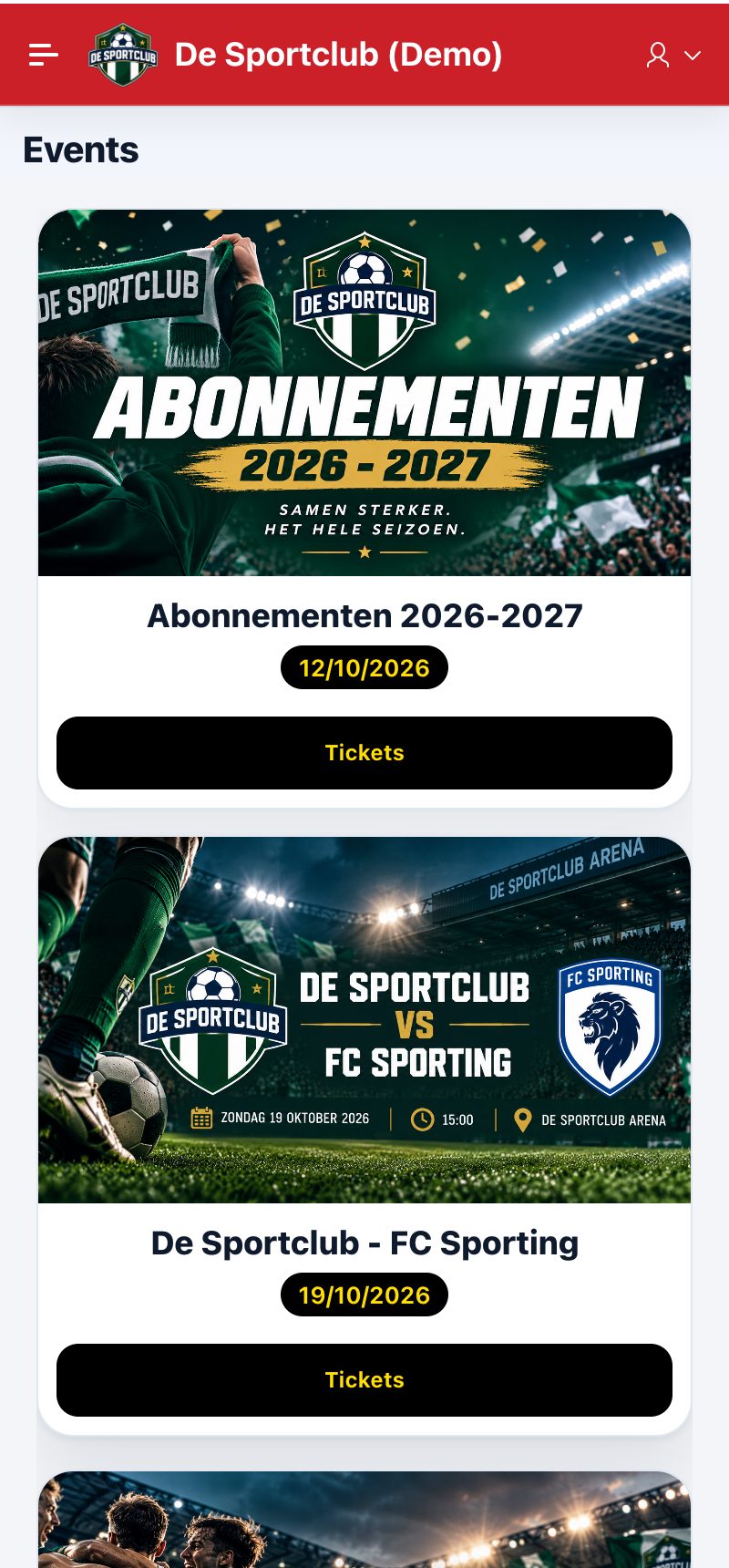
Under Events shows all events of your club. For an event, tap Tickets.
2. Choose what you want to buy
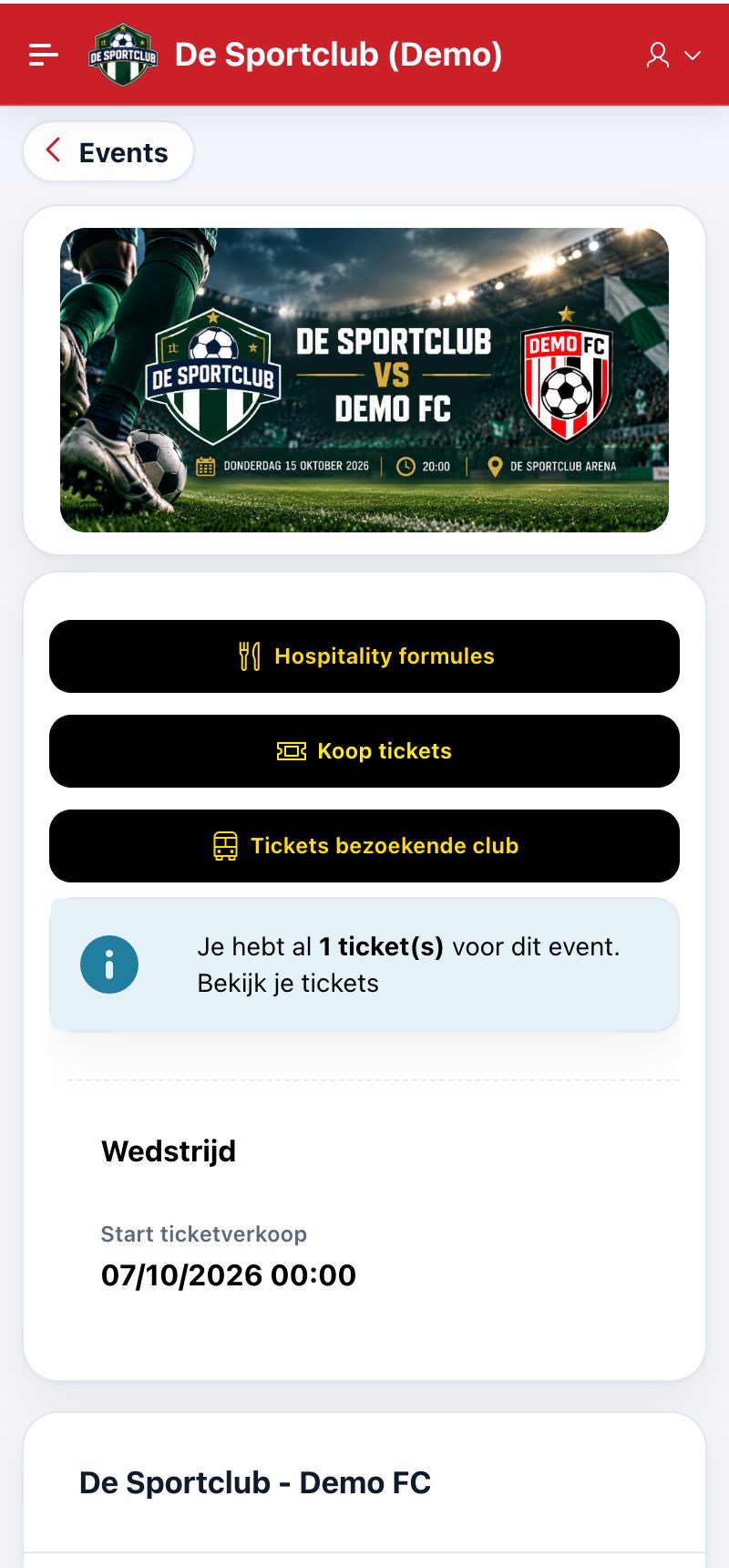
On the event page you choose:
- Hospitality packages: tickets without a fixed seat, with a quantity.
- Buy tickets: seats on the seating plan.
- Away club tickets: seats in the away section, if the club sells them.
If you already have tickets for this event, you see that right away, with a link to your tickets. If the sale has not started yet or has already ended, that is shown instead of the buttons.
3. The queue (when it's busy)
If sales are busy, you first enter a queue, before you choose anything. You see how many people are ahead of you and roughly how long it will take. Keep the page open; when it's your turn, you continue automatically. From then on you have a fixed time to complete your whole order, hospitality and seats together. When it's quiet, you don't see a queue.
4. Choose your seats on the seating plan
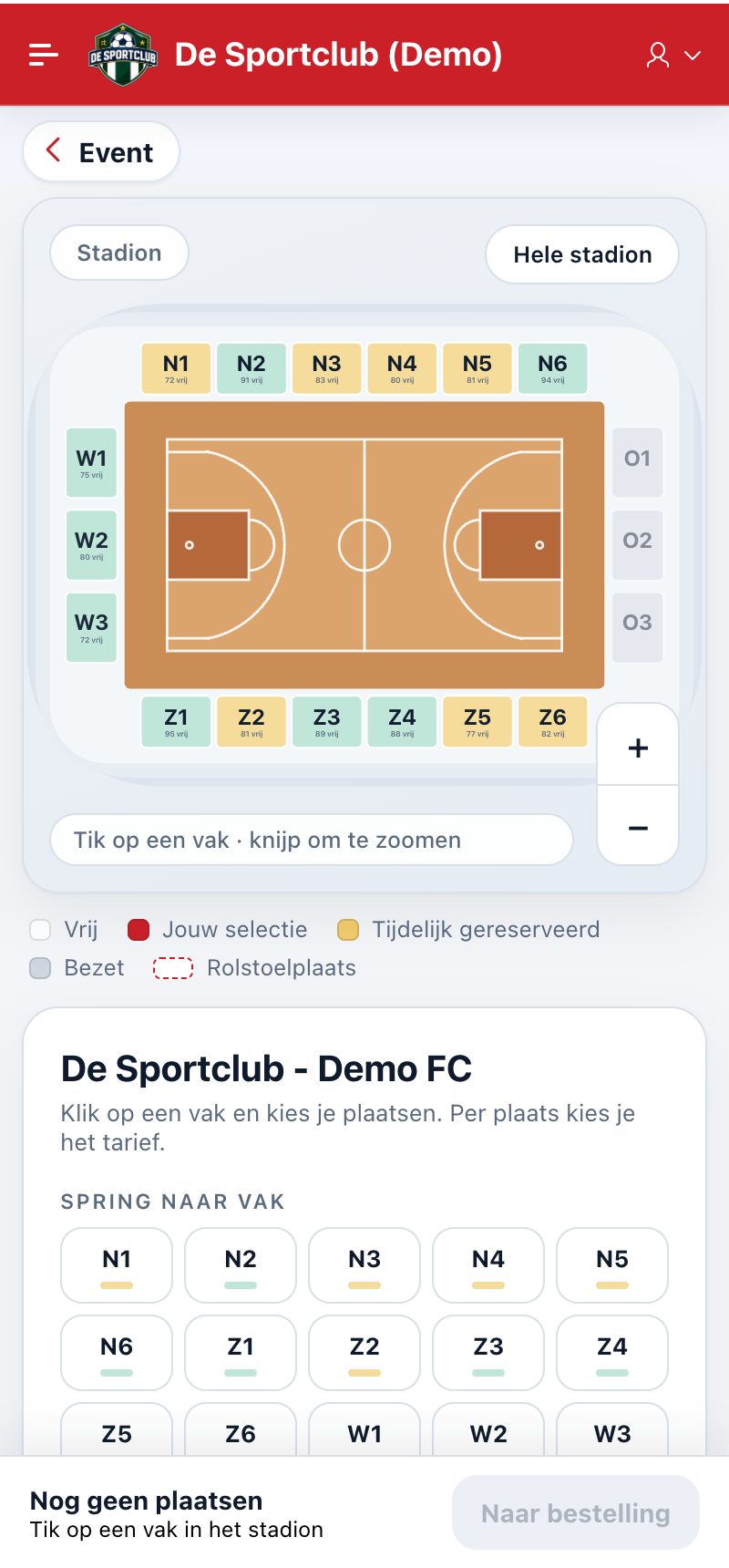
- You see the whole stadium. Tap a section, or choose it under Jump to section. Sections where you cannot buy for this event are greyed out.
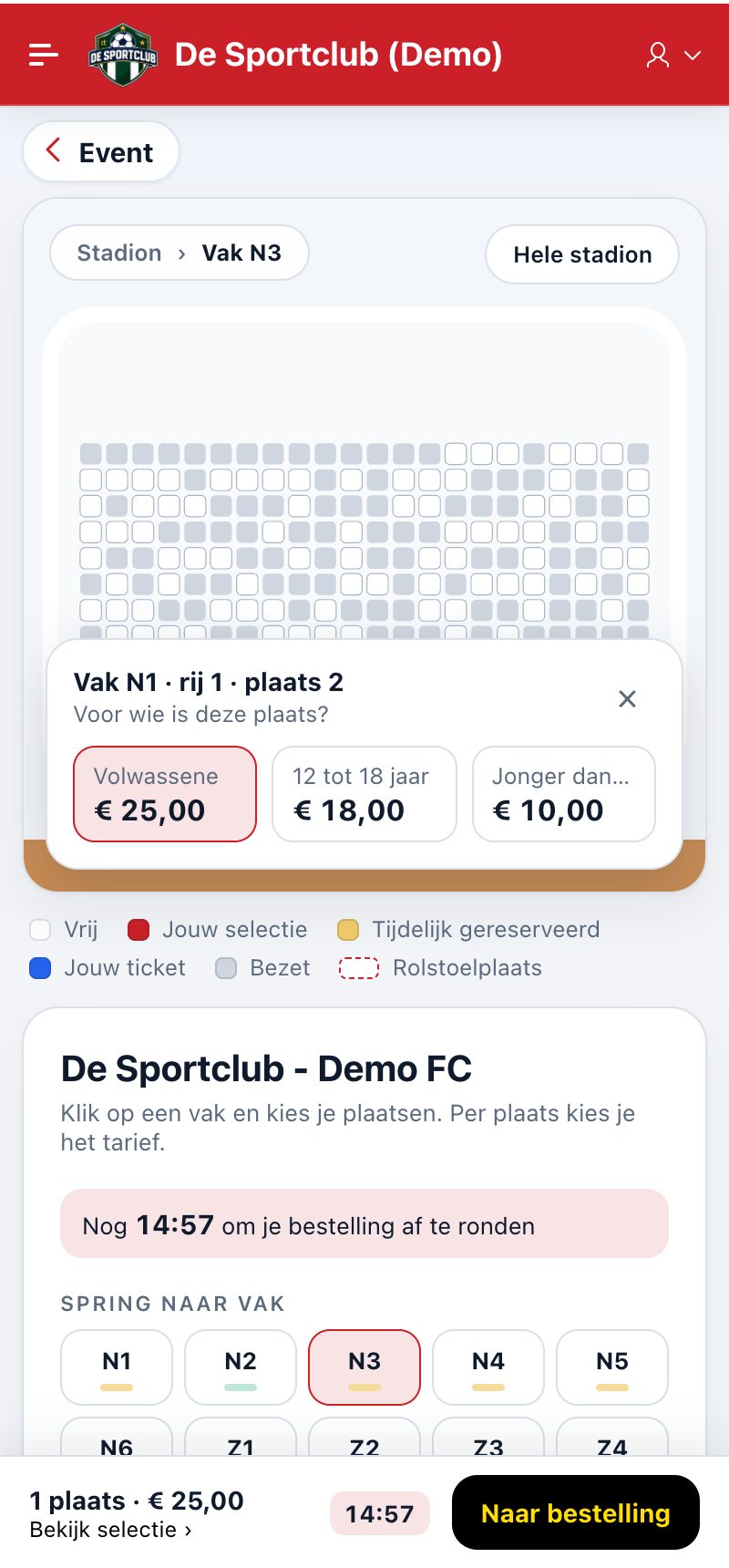
- Tap a free seat. Choose who the seat is for: the price category (e.g. adult, 12 to 18 years).
- Repeat this for every seat. At the bottom you see the number of seats, the total and the remaining time.
- Tap To order.
5. Check your order and pay
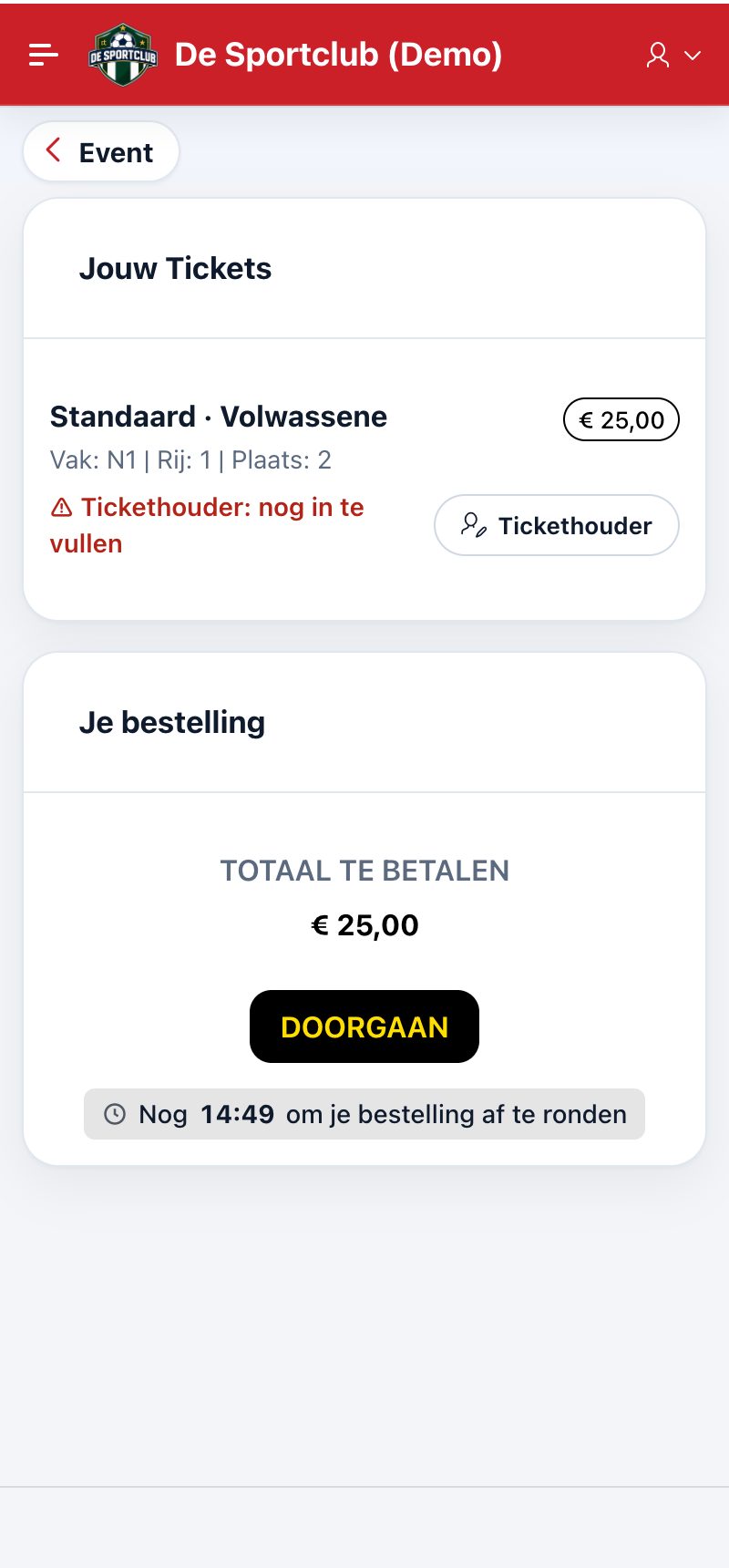
In your order you see every seat with its price category and price. For each ticket, fill in the ticket holder : yourself, a friend or a guest. Then tap Continue and pay online (e.g. Bancontact).
6. Your tickets
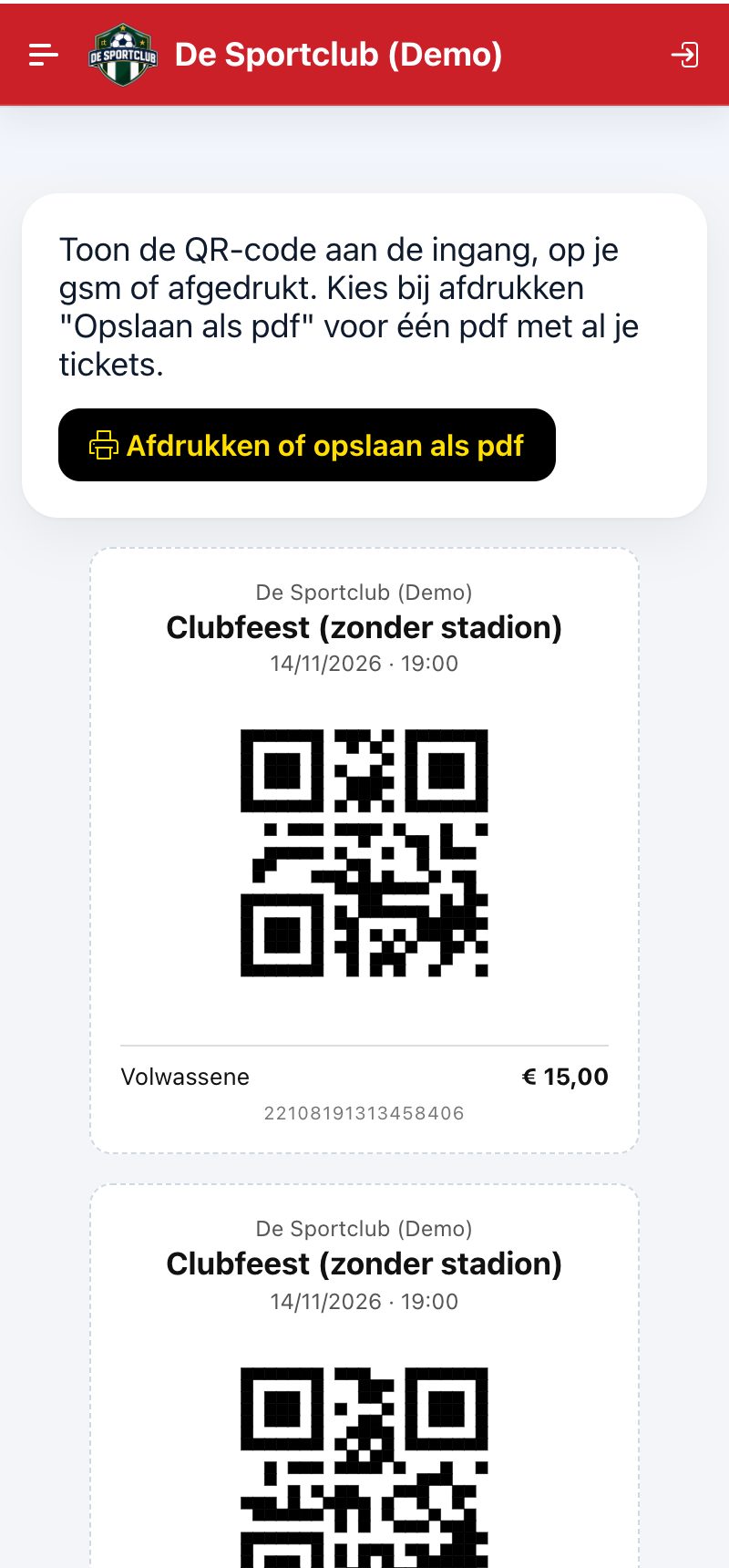
After payment you receive a confirmation mail with the button View and download your tickets. There you find all your tickets with their QR code. Show the QR code at the entrance on your phone, or tap Print or save as PDF for one PDF with all tickets. You can also always find your tickets in the app under My tickets.
Season tickets
You buy a season ticket the same way: choose the season ticket sale under Events, choose your fixed seat on the seating plan and the price, and complete in the shopping cart. Sometimes the club gives season ticket holders priority for an event (e.g. a cup match): with a season ticket of the selected season you can then buy earlier.
Did this answer your question?