
Workflows: setting up automatic mails
With workflows mails go out by themselves at the right moment. You set them up under Settings, Workflows. There are two kinds:
- Sales overview: the ticket sales figures to fixed addresses, for example your board or your federation. After every event, every day or every week.
- Reminder before the event: a mail to everyone with a ticket, a number of hours before the event starts, with a button to the tickets.
Creating a workflow
- Go to Settings, Workflows and click Add.
- Choose the kind and enter a name. You can't change the kind after saving.
- Choose when: after every event (with the number of hours after the end), daily or weekly (with the day and the hour). For a reminder you choose the number of hours before the start.
- Choose the template. You change the text under Settings, E-mails.
- For a sales overview you fill in the recipients , separated by a comma.
- For a sales overview, choose under Event type after which event types the mail is sent, for example only matches or only concerts. Empty means all events.
- Switch Active on and click Save.
What goes into the sales overview?
Under Content you tick which main ticket categories count, for example tickets and away tickets, without hospitality. Nothing ticked means everything.
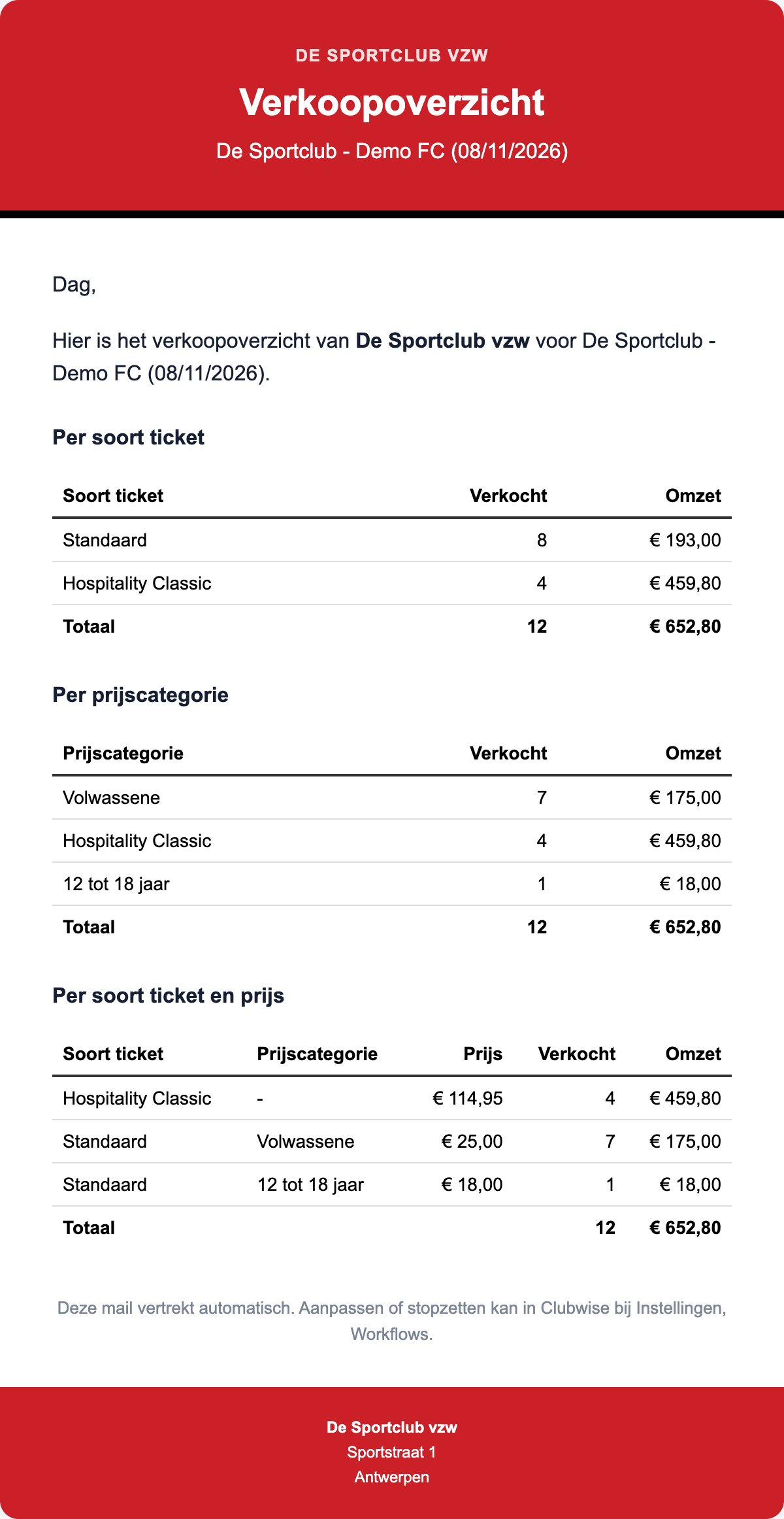
After an event you choose under Blocks in the mail which tables go into the mail, in this order:
- Total per category: quantity and revenue per main category.
- Per ticket kind: quantity and revenue per kind.
- Per price category: adults, youth, children, ...
- Per ticket type and price: per ticket type and price category, how many were sold at which price, including VAT. Useful for a declaration, for example to your association or federation.
- Occupancy per section: seats sold against all seats, with a percentage.
- Season ticket holders and scans: tickets of season ticket holders and how many have been scanned at the entrance.
The blocks go in the place of the tag [OVERZICHT] in the template.
Test first
At the bottom of the workflow, under Test mail you fill in your own address. You get a preview with your club's real data. The workflow is saved first, but the test mail doesn't count as sent.
Following up
In the list of workflows you see per workflow whether it is on, how many mails have been sent and when the last one went out. Under Last sent you see the recent mails with their recipient and status.
Did this answer your question?