
Part 5 of 9, Settings
E-mails: adjusting your mail templates
Clubwise sends quite a few mails automatically: a confirmation for a ticket or season ticket, an invoice, a reminder, a welcome mail in the app. The text of each mail is in a mail template, which you adjust yourself under Settings, E-mails.
Which mails are there?
| Group | Mails |
|---|---|
| Tickets and events | Ticket confirmation mail, event confirmation mail, event registration mail, event cancellation mail, event reminder |
| Season tickets | Season ticket confirmation mail |
| Invoicing | Invoice mail, credit note mail, invoice paid, invoice reminder 1, 2 and 3 |
| Ticket App | Registration, e-mail address confirmation, welcome to the app, password reset |
| Workflows | Sales overview |
Adjusting a template
- Go to Settings, E-mails and open the template.
- Adjust the subject and the message . On the right you immediately see the preview.
- Open the tab Tags and click a tag to put it in the text, for example the recipient's name or the date of the event.
- Click Save.
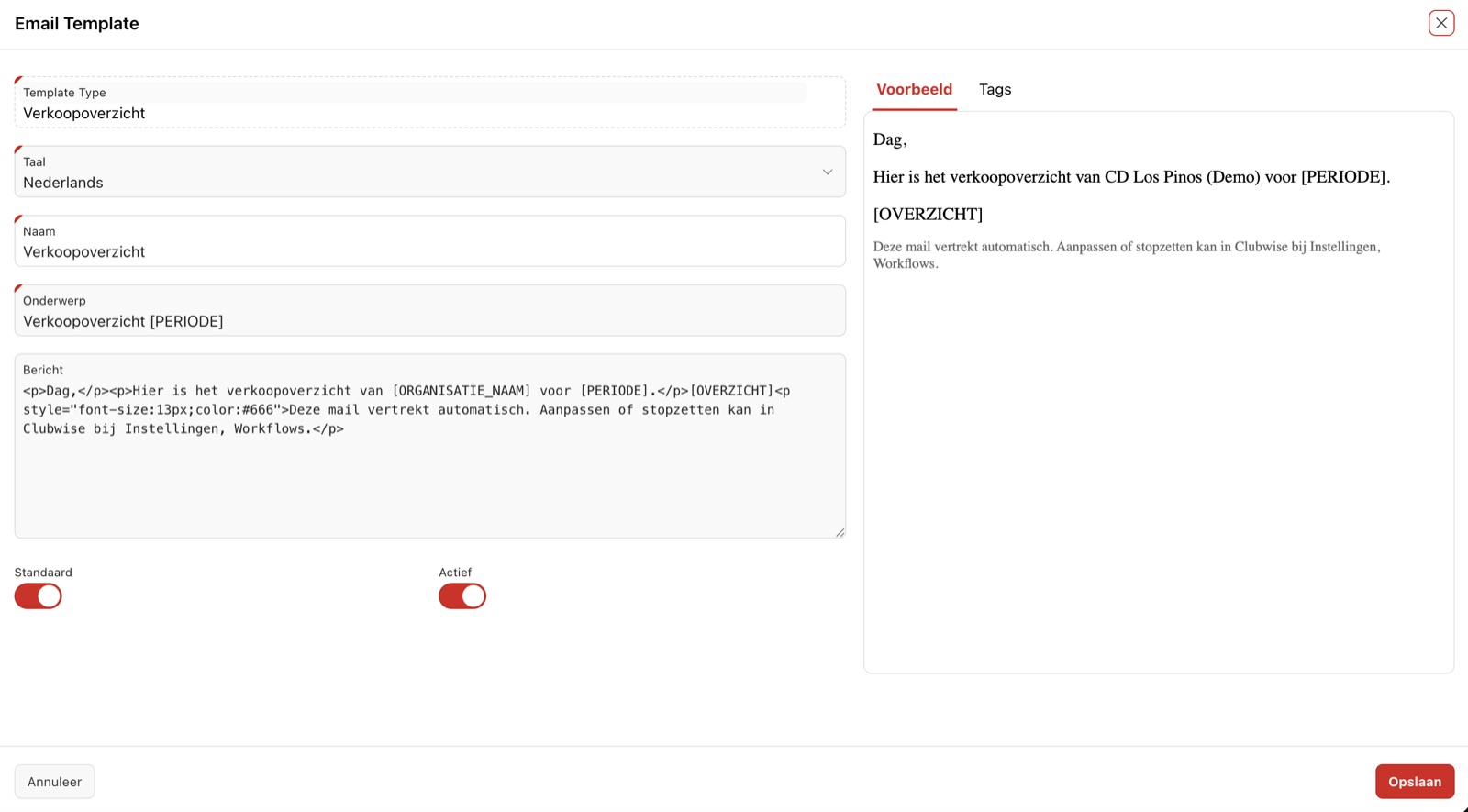
Tags
A tag is placed between square brackets, for example [ORGANISATIE_NAAM]. When sending, Clubwise replaces them with the real data. There are two kinds:
- Tags of this mail: what belongs to that kind of mail, such as the event, the tickets or the invoice number.
- Tags of your club: name, logo, address, VAT number, e-mail address, website, the link to your app and your four brand colours. They work in every mail.
Languages
Per template you choose the language. If you create the same mail in several languages, each recipient gets the version in their own language. If that language does not exist, they get the template set to Standard .
Tip: set a template you don't want to use (yet) to inactive, instead of deleting it. That way you keep the text for later.
← Previous articleSetting up locations and stadium planNext article →Workflows: setting up automatic mails
Did this answer your question?
Thanks for your feedback!