
Two-step verification for staff (back office and box office)
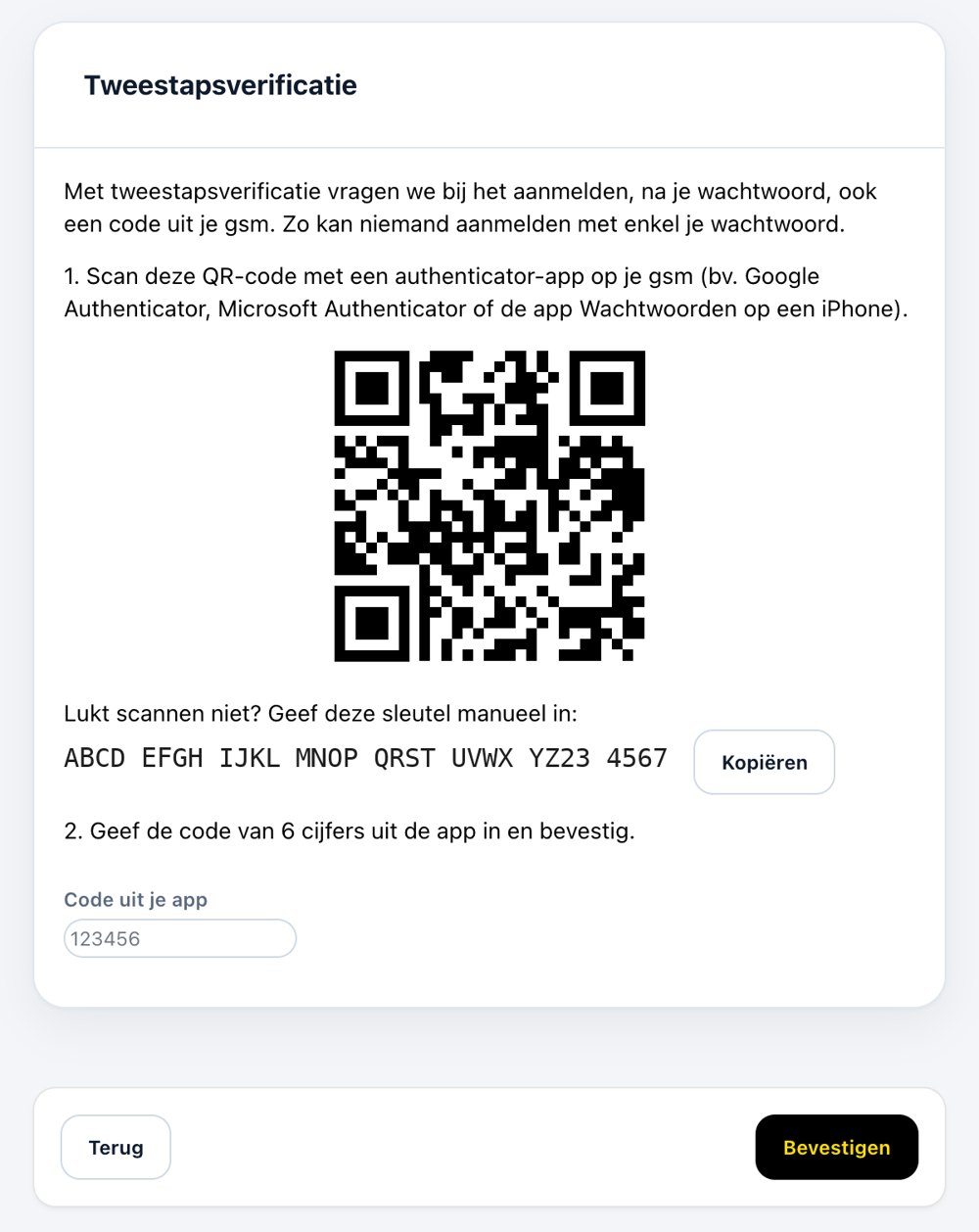
With two-step verification Clubwise asks, when you sign in, after your password, for a 6-digit code from an authenticator app on your phone, for example Google Authenticator or Microsoft Authenticator. Someone who knows your password still can't get in. It works in the back office and in the box office.
Switching it on yourself
- Open your menu at the top right and choose App settings, Two-factor authentication.
- Scan the QR code with your authenticator app.
- Type the 6-digit code from the app to confirm.
- Keep the recovery codes in a safe place. With them you sign in if you have lost your phone.
From then on Clubwise asks for the code at every sign-in. On your own device you can remember for 30 days, so you don't have to enter the code every day.
Making it mandatory for all staff
As an administrator you make two-step verification mandatory for everyone at your club who works in the back office or the box office: Settings, menu (⋮), General settings, Company settings. Anyone who doesn't have it yet sets it up at their next sign-in.
Someone has lost their phone
With a recovery code that person simply gets in. If that is lost too, an administrator with the right to manage two-step verification can reset it. That person then sets it up again with their new phone.
Did this answer your question?